
Tips & Tricks
English
Why do we work with Okta?
Okta is Jumbo's online working environment to which an ever increasing number of Jumbo applications are being added. One of its biggest advantages is that you only need to remember your Okta username and password. And you can log in to Okta anytime, anywhere and from any device (your smartphone, tablet or laptop) via www.okta.jumbo.com. Okta is also more secure because it uses a two-step verification process when logging in. It’s an extra layer of security that allows us to be sure that it is really you logging in. This is called multi factor authentication (MFA for short).
What applications are already available on Okta?
We’re gradually adding more applications to Okta. Eventually, all Jumbo applications will be accessible there. At the moment, Hello Talent! (for e-learning and training) and Youforce (for your paycheck or annual statement) are already on Okta. When an application becomes available via Okta, it’s possible that the old login process will change or expire. This means that Hello Talent! and Youforce will only be accessible via Okta as from 9 June 2022. It is therefore important for all Jumbo employees to have activated Okta and know how to use it by then. This page has more information about Okta and answers to the most frequently asked questions.
1. Activating your Okta account
The moment you join Jumbo, you will receive an email* from noreply@okta.com with the subject "Welcome to Okta from Jumbo". You can activate your Okta account using this email. The email has instructions and a link to start the activation process. Once you start activating your Okta account, make sure you go through and complete the entire process. If you do not do this, the activation link will no longer be valid and you’ll have to request a password reset via the Service Desk. We advise you to activate your account on a laptop, tablet on computer.
*The activation email is personal, non-transferable and valid for 30 days. After that, the link will no longer work. Has the link expired or can you not find the activation email? Then request a new activation email from the IT Service Desk (see contact details at the bottom of the page). Please have your username handy when doing this.
2. Logging into Okta
You can log in to Okta anytime, anywhere and from any device (smartphone, tablet, laptop). To log in, go to www.okta.jumbo.com via your browser.
3. Your username
Your username can be found in the activation email you received from noreply@okta.com. Your username contains your staff number. Depending on the department you work for, HR, FP, or FR will be shown before your personnel number, which will be followed by @jumbo.com. For instance: HR-1234567890@jumbo.com. Forgot your username? Ask your manager or contact the IT Service Desk (see contact details at the bottom of the page).
4. Your password
You created a personal password when activating your Okta account. If you are using a Jumbo laptop or computer, your Okta password is the same as your password to log in to your laptop or computer.
5. Forgot your password?
If you cannot remember your password, you can reset it yourself. Here's how it works:
Once you have done this, an email will be sent to your Jumbo and private email address with a link to reset your password. If you do not receive it in your Inbox, please check your Spam folder.
- Go to okta.jumbo.com
- Click on "Need help signing in?"
- Click on "Forgot password"
- Enter your username and click on "Reset via email".
Once you have done this, an email will be sent to your Jumbo and private email address with a link to reset your password. If you do not receive it in your Inbox, please check your Spam folder.

6. Password reset email not received
If – after the above action – you do not receive a password reset email, our system probably contains an incorrect email address for you. In this case, ask your manager for help, he or she knows how this can be changed in our systems. If you can't work it out with your manager, contact the IT Service Desk to have your email address changed.
7. Multi Factor Authentication
Okta uses two-step verification. It’s an extra layer of security that allows us to be sure that it's really you logging in. This is called multi factor authentication (MFA for short).
When activating your Okta account or upon initial use of an application with extra MFA protection, you have to go through a one-time MFA set up process. You can set up MFA using the Okta Verify app on your mobile phone. The latter does not apply if you work at a DC or EFC (see point 9). Complete the following steps:
- Go to the smartphone’s app store and search for the application: Okta Verify.
- Download this application to your smartphone.
- Once the application is downloaded, you can open it and you will receive instructions and an explanation on how the application works.
- Click on the "plus sign" at the top right to set up your MFA and scan the QR code.

8. I can't get the MFA code/push on my phone
There can be two reasons for this:
1. Notification sent to the wrong device
In this case, the MFA (Okta Verify) is probably set on another smartphone. If you still have this phone, you can do the following:
In this case, the MFA (Okta Verify) is probably set on another smartphone. If you still have this phone, you can do the following:
- You have the option to reset your MFA yourself via the Okta Verify app.
- Go to the app and delete the relevant account (with your Okta username listed).
- When you log in to Okta now, you will receive a new QR code that you can use to pair your new phone.
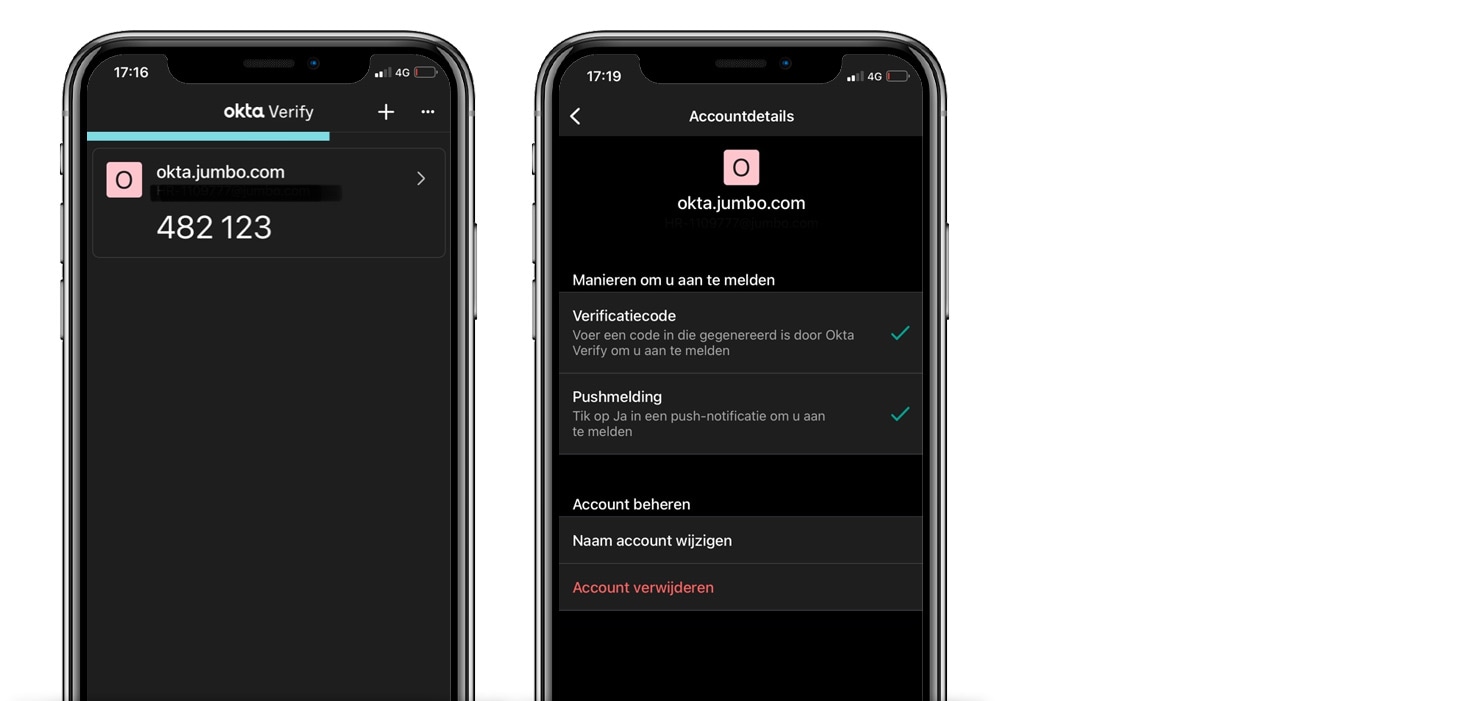
If you no longer have the old phone, you can also reset your MFA yourself if you are at a Jumbo location and are connected to a Jumbo network (for example on a computer in the store or on a laptop at the head office). Log in to okta.jumbo.com and go to your profile settings. You will then have the option to delete your MFA settings. As soon as you log in again outside a Jumbo location, you will automatically be asked to reset your MFA.

If the above does not work, please call the IT Service Desk.
2. Mobile phone time setting
The time on your phone is not set to "automatic". As a result, there may be a time difference between the device you're using to log in to Okta and your mobile that has the Okta Verify app installed. Go to your phone's settings and set the time to "automatic".
The time on your phone is not set to "automatic". As a result, there may be a time difference between the device you're using to log in to Okta and your mobile that has the Okta Verify app installed. Go to your phone's settings and set the time to "automatic".
9. MFA via email (DC and EFC only)
If you work at a DC or EFC, your MFA is via email (and not Okta Verify). You don't have to set anything up for this. If you're using Okta and you're asked for two-step verification (MFA), it's done via email. A code will be sent to your email address, which you must then enter during the Okta login process.

If you don't receive the code via email, there's probably an incorrect email address registered in our system. In that case, ask your manager to change it via Youforce.
10. Contact details IT Service Desk
Service Desk Stores: 035-5427112
Availability: Monday to Saturday from 06:30 to 22:00, Sunday from 09:00 to 20:00
Availability: Monday to Saturday from 06:30 to 22:00, Sunday from 09:00 to 20:00
Service Desk Head Office: 0413-356789
Availability: Monday to Friday from 06:30 to 18:00
Availability: Monday to Friday from 06:30 to 18:00
Service Desk Supply Chain: 0413-356789
Availability: Monday to Friday from 06:30 to 18:00
Availability: Monday to Friday from 06:30 to 18:00
Service Desk La Place: 040-258 2484
Availability: Monday to Friday from 08:00 to 18:30, Saturday from 08:00 to 18:00 and Sunday from 09:30 to 18:00
Availability: Monday to Friday from 08:00 to 18:30, Saturday from 08:00 to 18:00 and Sunday from 09:30 to 18:00
Service Desk La Place: 040-258 2484
Availability: Monday to Friday from 08:00 to 18:30, Saturday from 08:00 to 18:00 and Sunday from 09:30 to 18:00
Availability: Monday to Friday from 08:00 to 18:30, Saturday from 08:00 to 18:00 and Sunday from 09:30 to 18:00
Service Desk Stores: 035-5427112
Availability: Monday to Saturday from 06:30 to 22:000, Sunday from 09:30 to 18:00
Availability: Monday to Saturday from 06:30 to 22:000, Sunday from 09:30 to 18:00

Please have your username at hand so we can help you quickly.